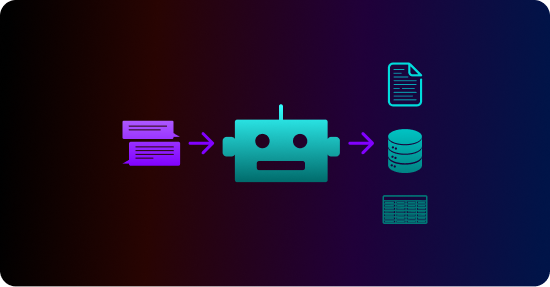
The Tonic Fabricate Data Agent provides an easy-to-use chat-based interface that allows you to quickly generate almost any type of data - from retail transactions to healthcare records to travel reservations to scientific research results.
While the data that the Data Agent produces is very realistic, you might sometimes want to use data that you already have to inform the data generation process. For example, if you use the generated data for testing, then it might be important for the data to contain specific values that the tests are looking for.
The Data Agent provides a couple of options to do exactly that:
- You can import a file to create a new table or to update the data in an existing table.
- From the Data Agent prompt, you can attach files that contain specific data to use. You then tell the Data Agent how to use the data.
In this guide, we'll explain how to use both options—importing and attaching files—to incorporate custom data into a Data Agent database.
Importing a file to create or update a table
Let's start with importing a file and then using the file to create or update a table.
Requirements for imported files
For the import option, the file:
- Can be a .csv, .json, or .jsonl file.
- Cannot be larger than 100 MB.
- If it is used to add or replace records in an existing table, it must have the same structure as that table.
Completing the import
Before you start the import, if you are going to use the data to replace or add to the data in an existing table, then in the table list for the database, select the table.
To import data from a file into a Data Agent database:
- In the database heading, click Import.

- On the Import Data panel, select the file to import.
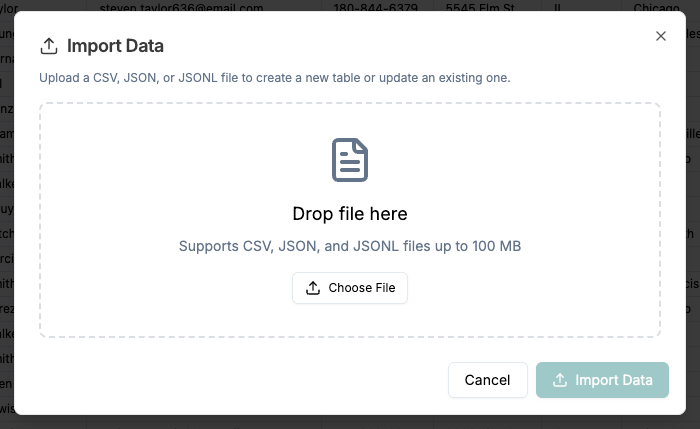
You can either:
- Drag and drop the file to the panel.
- Click Choose File, then search for and select the file.
Fabricate reads the file and then displays the first few records. You can use the preview to verify the file structure.
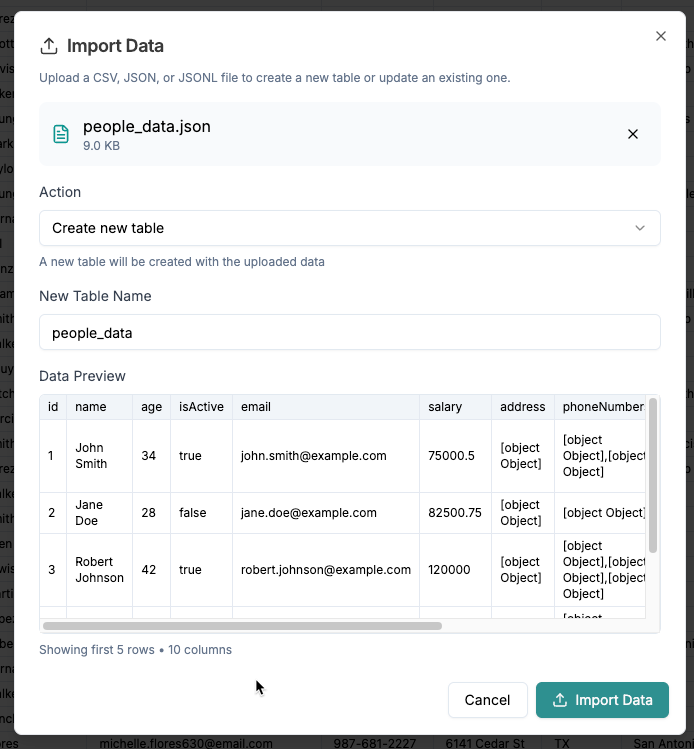
- From the Action dropdown list, select the action to perform with the data:
- Create a new table
- Replace the data in the currently selected table
- Add to the data in the currently selected table
- If you are creating a new table, then in the New Table Name field, provide the name of the new table.
The name defaults to the file name. - To complete the import click Import Data.
Get the leading AI agent for synthetic data generation.
Create a free Tonic Fabricate account and chat your way to the data you need for any domain.
Attaching files to the Data Agent chat
The Data Agent chat prompt always includes an attach icon to attach a file to the chat.

An attached file might be a schema file to tell the Data Agent how to structure the new database.
However, attached files can also contain data to use in the database.
You then use the prompt to tell the Data Agent how to use the data.
Let's look at a few examples of how you might use the data in an attached file.
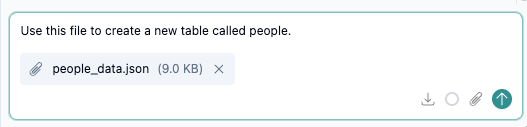
Creating a new table
One simple case is to use the data to create a new table. This is similar to the import case.
You attach the file and then prompt the Data Agent to create the table.
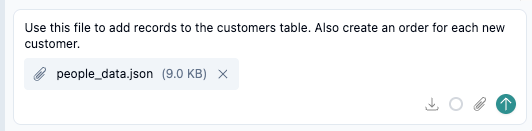
Adding or replacing records in a table
Also similar to the import case, you can use the data to update the records in an existing table.
You attach the file and then prompt the Data Agent to add or replace records. At the same time, you can ask the Data Agent to perform other actions related to the new records.
Scaling up the records from the file
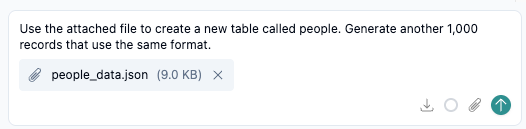
When you create records from a file, you might also want the Data Agent to create additional records from scratch.
For example, you have a file that contains 50 customer records — the specific records to use for testing — but you want to add another 1,000 records to use for performance testing.
Providing specific values for a column
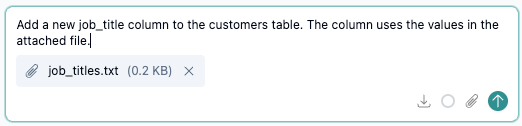
Attached files don't necessarily have to contain entire records. They can, for example, contain values that you want to use in a new or existing column.
For example, you might create a list of specific job titles to use in a job title column.
You attach the file, then tell the Data Agent how to use the values.
Recap
The Tonic Fabricate Data Agent allows you to quickly generate realistic data in a wide variety of structures and formats.
You can also enhance the generated data with your own data, for example to ensure that development tests can find the values they are expecting to use.
The import option allows you to import a .csv, .json, or .jsonl file and use the data to create a new table, add to the records in an existing table, or replace the records in an existing table.
You can also attach files to the Data Agent prompt and then tell the Data Agent how to use that data. Like the import option, you might use an attached file to create a table or add or replace table records. Attached files can also be used to provide a simple list of values to populate a column.
With these options, Fabricate provides you with the flexibility and tools you need to generate high-fidelity synthetic data. Get started for free or connect with our team to learn more about Tonic Fabricate today.